
All-in-One POS Terminal: How to Choose the Right Touch Screen POS System
Choosing an all-in-one POS terminal? Compare screen sizes, Android vs Windows, built-in printers and dual displays — and see what to check before you buy from a manufacturer.
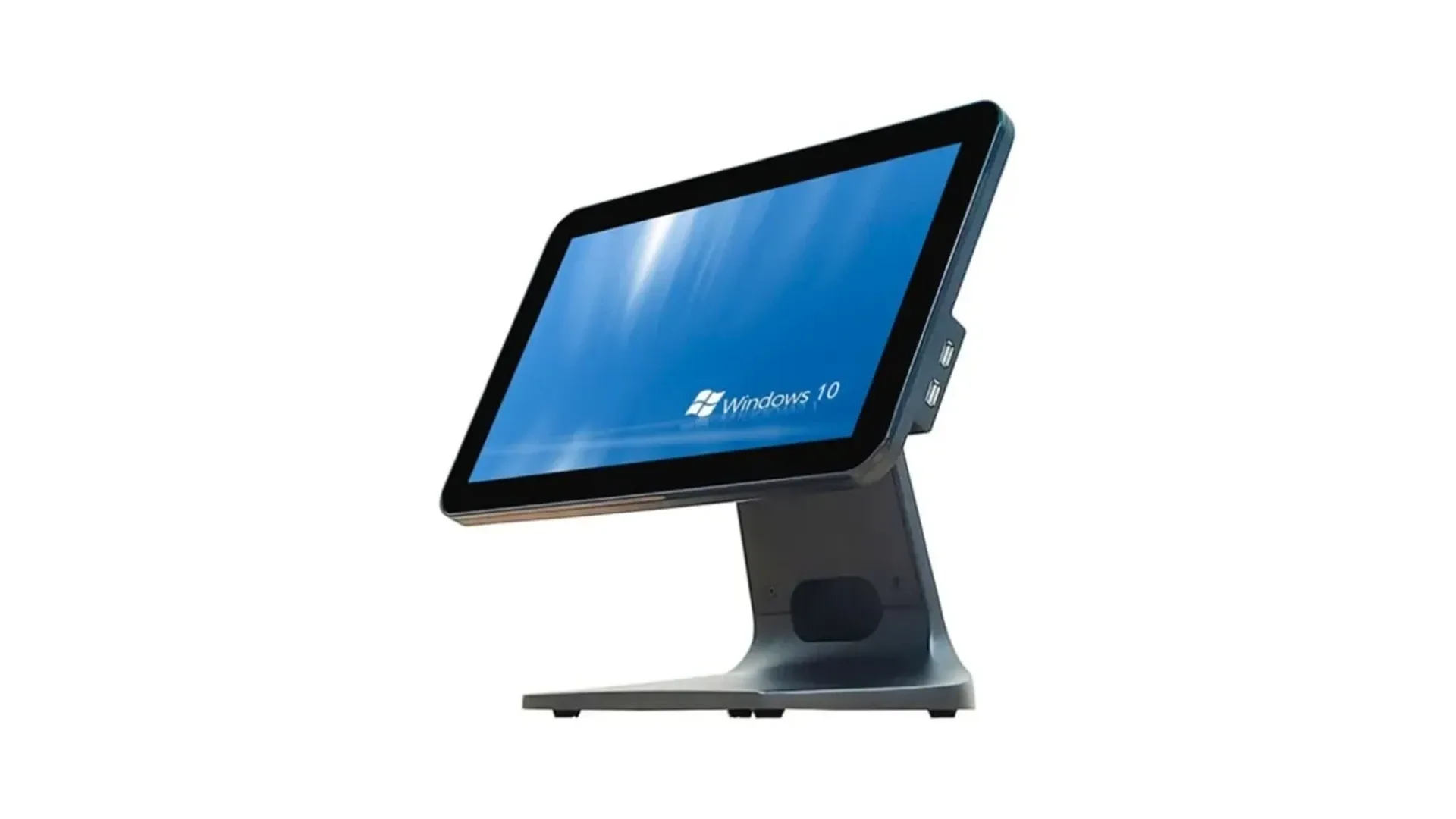
A customer walks up to the counter, you scan their items, they tap their card, and a receipt prints — all from one machine. That machine is an all-in-one POS terminal, and for most retail and restaurant businesses it has quietly replaced the old setup of a separate computer, monitor, receipt printer, and cash drawer.
But not all all-in-one terminals are the same. Screen size, operating system, printer options, and build quality all change what the machine can do for your business — and what it will cost you over time. This guide explains what an all-in-one POS terminal actually is, how to compare models, and what to check before you buy, whether you are opening your first store or rolling out hardware across a chain.
What Is an All-in-One POS Terminal?
An all-in-one POS terminal combines the computer, the touch screen, and the checkout hardware into a single unit. Instead of buying a PC, a monitor, a receipt printer, and a cash drawer separately and connecting them yourself, you get one machine that does the whole job — the screen your staff touch, the processor that runs your POS software, and the ports that connect your printer, scanner, and cash drawer.
Most models add more. A second customer-facing display shows the order total and promotions to the shopper. A built-in thermal receipt printer removes one more box from the counter. Some models fold flat for storage or transport, and many use an aluminium housing that survives years of daily use in a busy store.
The idea is simple: fewer boxes, fewer cables, fewer things to go wrong. For a small shop that means a cleaner counter and a faster setup. For a chain it means every location runs identical hardware, which makes training, support, and spare parts far easier to manage.
What's Inside: The Parts That Matter
When you compare all-in-one terminals, five things decide how well the machine will work for you:
- Touch screen. This is what your staff use all day, so it should respond accurately to a light touch and stay readable under shop lighting. Capacitive touch screens — the same technology as a smartphone — are now standard on quality terminals, including the 15.6-inch Windows 10 all-in-one POS terminal we manufacture.
- Processor and memory. Your POS software, card payments, and any loyalty or inventory app all run on this hardware. A terminal that feels slow at the till costs you queue time and customer patience, so match the performance to the software you actually run.
- Ports and connectivity. Check that the terminal has the connections your peripherals need — USB for barcode scanners and printers, a cash drawer port, and network connectivity for cloud POS software and card payments.
- Printer. Some terminals include a built-in thermal receipt printer; others connect to an external one. A built-in printer saves counter space, while an external printer is easier to replace if it fails.
- Stand and housing. A solid aluminium base keeps the terminal stable when staff tap the screen hard. A foldable stand helps if the machine moves between locations or needs to pack flat.
Screen Size: 11.6, 15 or 15.6 Inches — and Dual Screens
Screen size is the first choice most buyers make, and it mostly comes down to counter space and how much your staff need to see at once.
11.6-inch terminals suit small counters — market stalls, food trucks, and pop-up shops where space is tight and the product list is short. They are light, easy to move, and leave room for everything else on the counter.
15-inch and 15.6-inch terminals are the standard for retail and restaurant counters. The larger screen shows more products, modifiers, and order lines at once, which means fewer taps per sale and fewer mistakes during a rush. Our range covers both, including a lightweight ABS 15.6-inch model for counters where weight matters.
Dual-screen terminals add a second display facing the customer. The shopper sees each item as it is scanned, the running total, and any promotion you choose to show — which reduces disputes at the till and turns the checkout into a small advertising screen. Dual touch screen models let the customer interact too, for example to confirm an order or join a loyalty program.
Whatever size you choose, check the viewing angle and brightness. A screen that washes out under a shop's overhead lights will slow your staff down every single day.
Android or Windows?
All-in-one POS terminals run on two main operating systems, and the right choice usually depends on the software you already use.
Android terminals are familiar to anyone who uses a smartphone, which keeps staff training short. They work well with cloud-based POS apps, start up fast, and are usually the lower-cost option. If your POS software has an Android version — and most modern cloud POS systems do — Android is a straightforward choice.
Windows terminals fit businesses running Windows-based POS software, including many established retail and restaurant systems. They also suit operations that need to run several desktop applications on the same machine, such as accounting or inventory software alongside the till.
There is no universally better option. The deciding question is simple: which operating system does your POS software need? Buy the terminal that runs your software well, not the one with the longer specification sheet. If you are still choosing software, pick the software first, then the hardware to match.
Built-in Printer or External Printer?
Receipt printing is part of almost every sale, so it is worth deciding how yours will work before you buy.
A built-in thermal printer keeps everything in one unit. There is one power cable, one footprint on the counter, and nothing extra to knock over during a busy shift. Our 15.6-inch lightweight ABS terminal offers a built-in printer option for exactly this reason.
An external printer — typically an 80mm thermal receipt printer — gives you more flexibility. You can place the printer where it suits the workflow, choose a model with an auto cutter, and swap it out in minutes if it ever fails, without taking the whole terminal offline. For kitchens and high-volume counters, a separate printer is often the better setup.
Either way, confirm the printer connection before you order. Most terminals connect to printers over USB or network, and the printer should be supported by your POS software. If you already own printers, check compatibility rather than assuming it.
Choosing by Business Type
Different businesses stress a POS terminal in different ways. Here is what matters most for each:
- Retail shops. A 15.6-inch screen shows long product lists without scrolling, and a customer-facing display reduces price disputes. A barcode scanner and cash drawer are essential add-ons; a built-in printer keeps the counter tidy.
- Restaurants and cafes. Speed matters more than screen size. Staff need large, clear buttons they can hit during a rush, and the terminal should handle modifiers — extra toppings, no ice, split bills — without slowing down. A foldable stand helps if the terminal moves between the counter and a server station.
- Grocery and supermarkets. Weight matters here: a POS scale integration lets the terminal weigh produce and print priced labels. Look for models that connect cleanly to scales and label printers, and a screen large enough for the full product catalogue.
- Hospitality and multi-store chains. Consistency is the priority. Identical hardware at every location means one training program, one set of spare parts, and one support process. This is where buying from a manufacturer with OEM/ODM capability pays off — the same terminal can carry your brand across every store.
All-in-One vs Separate Components
Is an all-in-one terminal always the right call? For most businesses, yes — but it helps to know the trade-offs.
What you gain: one purchase instead of four, one supplier to call, one power cable, and a counter that stays clear. Setup takes minutes: unbox, plug in, install your software, and start selling. Maintenance is simpler too, because the whole unit is tested as one system before it ships.
What you give up: flexibility. With separate components you can replace just the monitor or just the printer. With an all-in-one, a failed screen usually means the whole unit goes for repair — so build quality and warranty terms matter more. This is also why the manufacturer's track record counts: a terminal from a factory that has shipped thousands of units a month for years is a safer bet than a no-name box with a short warranty.
For a single store, the simplicity usually wins. For a large rollout, the consistency wins. Separate components still make sense when you already own good peripherals and only need to replace one part of the setup.
What to Check Before You Buy
Before you order any all-in-one POS terminal, run through this checklist:
- Certifications. CE, RoHS, and FCC marks show the hardware meets safety and electromagnetic standards in your market. If you sell into India or the EU, check for BIS and REACH as well. All GHI terminals carry CE, RoHS, FCC, BIS, and REACH certification.
- Software compatibility. Confirm your POS software runs on the terminal's operating system, and ask whether the supplier has tested that combination.
- Build quality. Aluminium housings and solid bases last longer on a busy counter than thin plastic. Ask about the warranty — and what it actually covers.
- Ports. Count your peripherals — printer, scanner, cash drawer, scale, card reader — and make sure the terminal has enough connections, with one spare.
- Support. Who answers when something breaks? A manufacturer with a direct support channel resolves problems faster than a reseller who has to ask someone else.
- Supply continuity. If you plan to buy more units later, check that the same model will still be available. A manufacturer that controls its own production can keep a model in supply far longer than a trader buying whatever is available.
If you are a system integrator or reseller, also ask about OEM/ODM. A factory that can build to your specification — your logo, your housing color, your packaging — turns a commodity terminal into your own product line. We covered the OEM decision in detail in OEM POS Terminal vs Off-the-Shelf: Which Is Better for System Integrators?
Why Buy Direct from the Manufacturer
GHI has manufactured POS hardware in Guangzhou since 2010. Our factory ships more than 5,000 POS units a month, supplies over 2,000 customers worldwide, and holds a 4.9 out of 5 customer rating. We build all-in-one POS terminals, self-service kiosks, barcode scanners, thermal printers, cash drawers, and time attendance machines — and we OEM/ODM for multiple brands, so the terminal you buy can carry your name, not ours.
Buying direct means you talk to the people who built the machine. Custom hardware configurations, private-label branding, and volume supply are all handled in-house. You can read more about how we work in POS Machine Manufacturer: 5,000+ Units a Month, OEM/ODM for Global Brands, or browse the full POS hardware range.
Frequently Asked Questions
What is an all-in-one POS terminal?
An all-in-one POS terminal combines the computer, touch screen, and checkout hardware into a single unit. It runs your POS software, takes payments, and connects to printers, scanners, and cash drawers — all from one machine on the counter.
What size touch screen POS terminal do I need?
For most retail and restaurant counters, 15 or 15.6 inches is the standard — large enough to show full product lists without scrolling. Choose 11.6 inches only when counter space is very tight, and consider a dual-screen model if you want customers to see their order as it is scanned.
Should I choose Android or Windows for my POS terminal?
Choose the operating system your POS software needs. Android suits cloud-based POS apps and keeps training short; Windows fits established Windows POS software and businesses running several desktop applications on the till.
Do all-in-one POS terminals have a built-in printer?
Some do and some don't. Models with a built-in thermal printer save counter space and reduce cables, while an external 80mm printer is easier to replace and can be placed wherever suits your workflow. Both options work — decide based on your counter layout and how you handle printer failures.
Can I get an all-in-one POS terminal with my own brand?
Yes. Manufacturers offering OEM/ODM can build terminals with your logo, housing color, and packaging, so the hardware carries your brand. GHI has provided OEM/ODM for multiple brands since 2010.
Ready to choose your terminal? Tell us your business type and the POS software you run, and we will recommend the right all-in-one terminal for your counter. Contact us or email ghipos@aliyun.com — send your requirements and we will reply with a tailored recommendation.

